> ## Documentation Index
> Fetch the complete documentation index at: https://ekacare-mintlify-80308f89.mintlify.site/llms.txt
> Use this file to discover all available pages before exploring further.

# Getting started

## Overview

The Eka API Authentication process ensures secure access to sensitive healthcare data through a robust authentication process. To interact with the APIs, third-party developers must obtain an access token, use it in all API requests, and handle token expiration efficiently. This guide outlines the essential steps to securely integrate with Eka's API.

### Key Components

* **Client Application:** A third-party application that communicates with Eka's API.
* **Eka API Gateway:** The server-side component that authenticates and processes API requests.

## Setting Up Your Eka Account

This is a **one-time setup** required before you can start using Eka services.

<Note>
  <a href="https://login.eka.care/workspace/sign-in/?next=https://console.eka.care&product_type=emr&signup=user_only&tab=sign-up" target="_blank">Click here to visit Eka signup page to get started</a>.
</Note>

<Note>
  Eka supports multiple sign-up options such as Google, Apple, Email Address, and Username.
  In this guide, we’ll use <strong>Email Address</strong> to walk through the setup steps.
</Note>

<Steps>
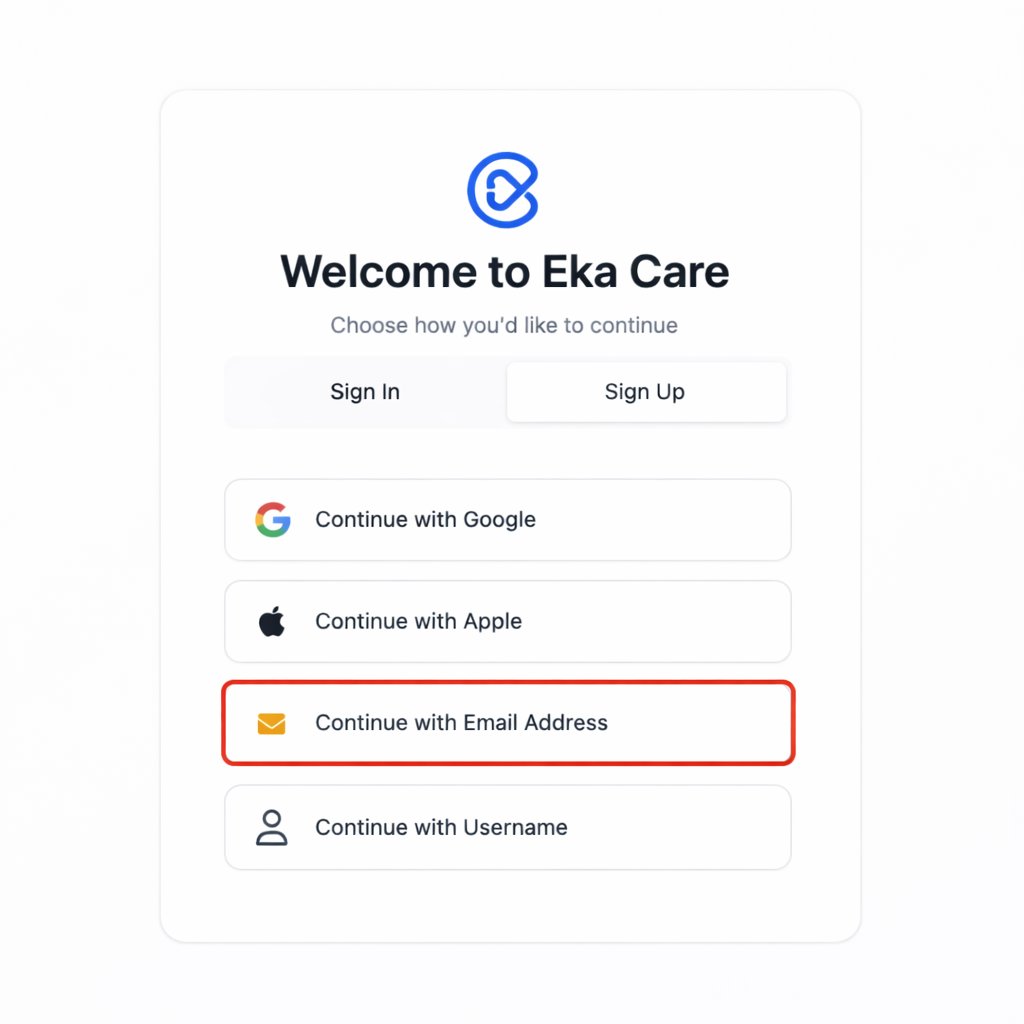
  <Step title="Choose Sign Up method of your choice">
    On the welcome screen, select your preferred sign-up option.
    For this guide, we will choose <strong>Continue with Email Address</strong>.

    <img src="https://mintcdn.com/ekacare-mintlify-80308f89/AddPEjxaeC_E-a2e/api-reference/authorization/images/eka-sign-up-options.png?fit=max&auto=format&n=AddPEjxaeC_E-a2e&q=85&s=330434f20b64f39ef4d8069fac37e043" alt="Eka sign-up options screen" width="1024" height="1024" data-path="api-reference/authorization/images/eka-sign-up-options.png" />
  </Step>

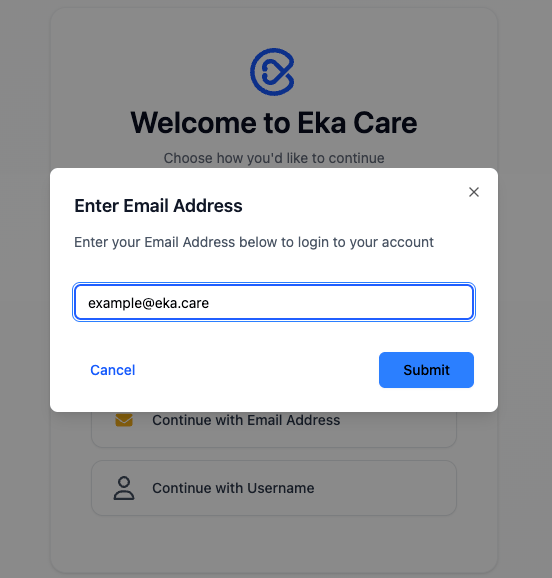
  <Step title="Enter your email address">
    Enter your email address and click <strong>Submit</strong>

    <img src="https://mintcdn.com/ekacare-mintlify-80308f89/AddPEjxaeC_E-a2e/api-reference/authorization/images/enter-email.png?fit=max&auto=format&n=AddPEjxaeC_E-a2e&q=85&s=e295140fe48bbec2ab2640bcadea284d" alt="Eka enter email" width="552" height="578" data-path="api-reference/authorization/images/enter-email.png" />
  </Step>

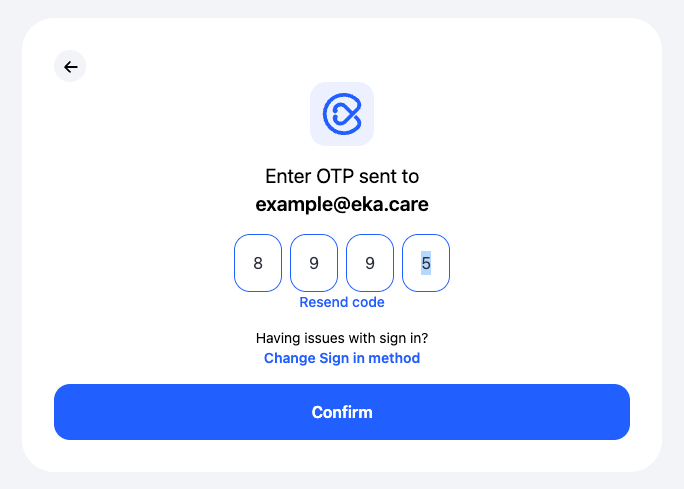
  <Step title="Verify Email Using OTP">
    Enter the one-time password (OTP) sent to your email address and click <strong>Confirm</strong>

    <img src="https://mintcdn.com/ekacare-mintlify-80308f89/AddPEjxaeC_E-a2e/api-reference/authorization/images/verify-otp.png?fit=max&auto=format&n=AddPEjxaeC_E-a2e&q=85&s=00ca9e67dcc614672d97bbaa4c56986c" alt="OTP verification screen" data-zoomable width="684" height="489" data-path="api-reference/authorization/images/verify-otp.png" />
  </Step>

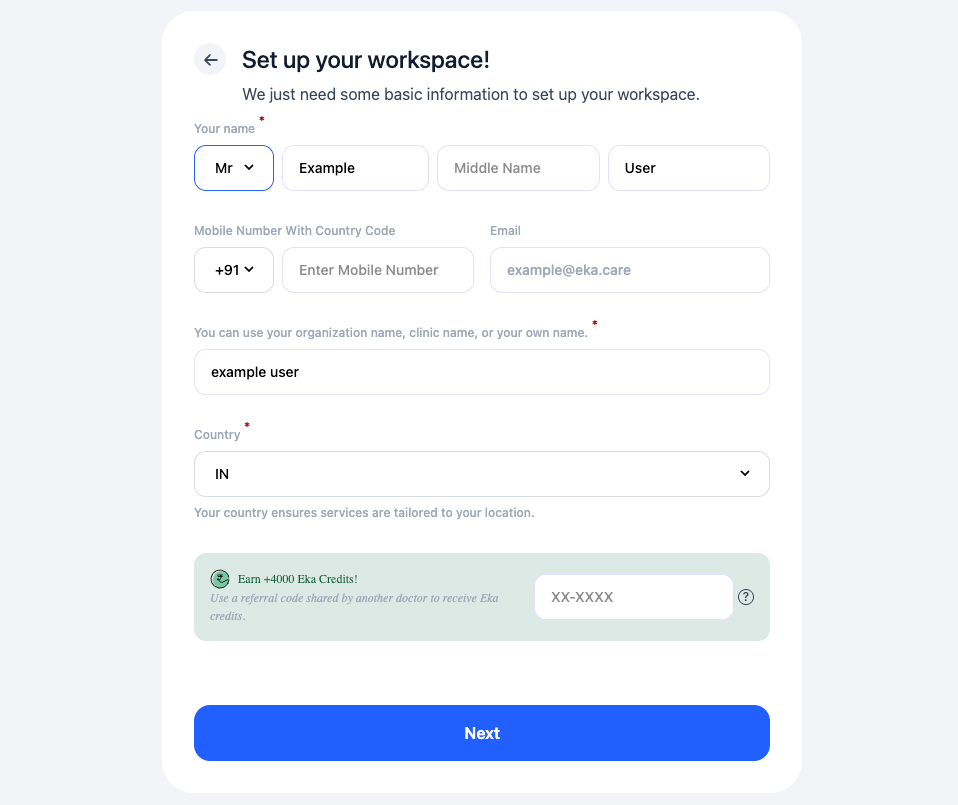
  <Step title="Create Workspace">
    You need to setup your workspace you use Eka. Enter your details and click on <strong>Next</strong>

    <img src="https://mintcdn.com/ekacare-mintlify-80308f89/AddPEjxaeC_E-a2e/api-reference/authorization/images/setup-workspace.png?fit=max&auto=format&n=AddPEjxaeC_E-a2e&q=85&s=1be743ad38464b77dceddc629659cfc6" alt="OTP verification screen" data-zoomable width="958" height="805" data-path="api-reference/authorization/images/setup-workspace.png" />
  </Step>

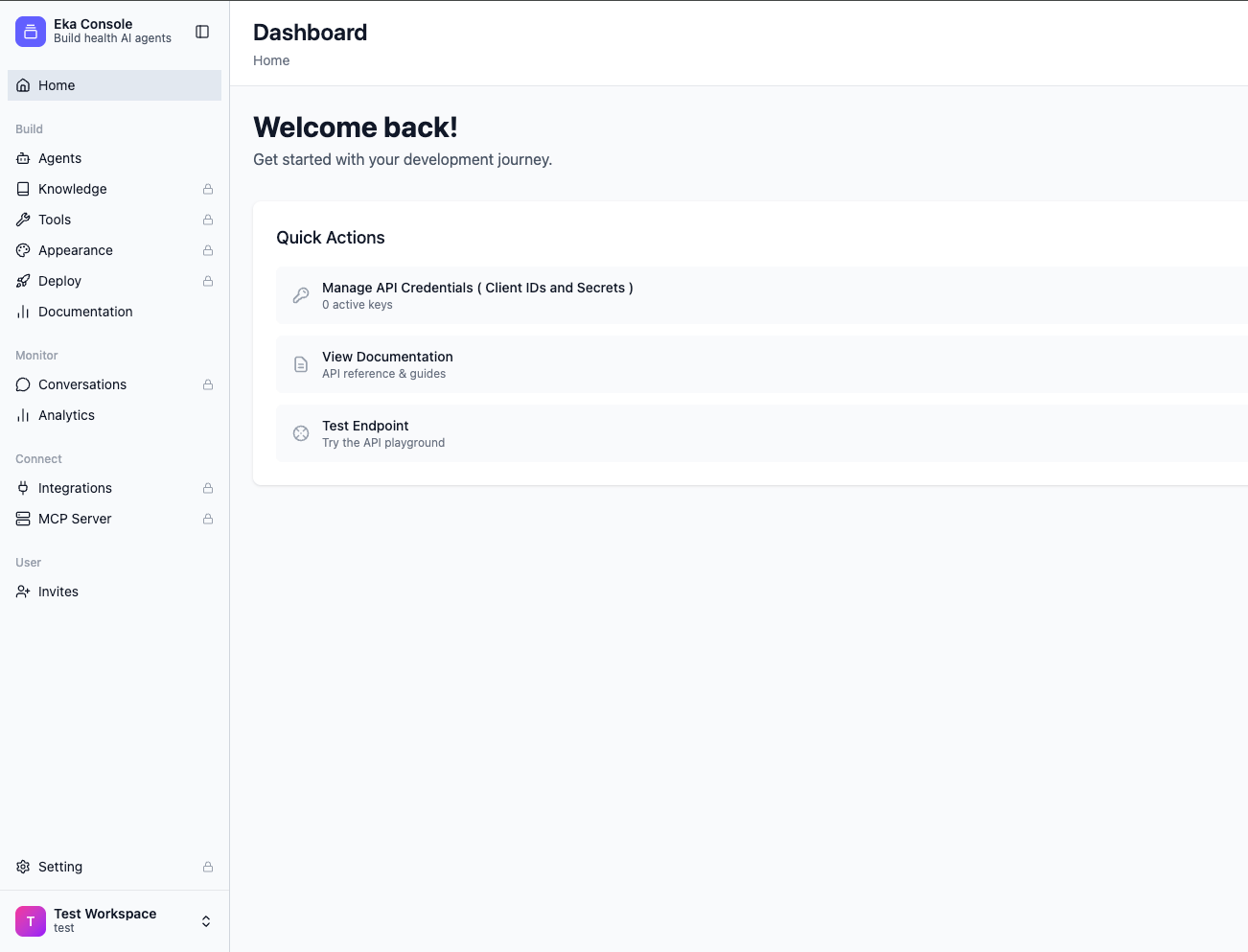
  <Step title="Automatic Account Creation and Login">
    After submitting workspace details:

    * Your Eka account is created
    * You are automatically logged in
    * Your workspace is ready to use

    <img src="https://mintcdn.com/ekacare-mintlify-80308f89/AddPEjxaeC_E-a2e/api-reference/authorization/images/console-dashboard.png?fit=max&auto=format&n=AddPEjxaeC_E-a2e&q=85&s=c158137a2777f234e538d8957fcc9c5f" alt="Eka dashboard after signup" data-zoomable width="1302" height="993" data-path="api-reference/authorization/images/console-dashboard.png" />
  </Step>
</Steps>

## Creating API Credentials

Once your Eka account is set up, you can use the **Eka Developer Console**
to create and manage API client credentials. <a href="https://console.eka.care" target="_blank">Click here to visit Eka Developer Console</a>.

<Steps>
  <Step title="Open the Eka Console Dashboard">
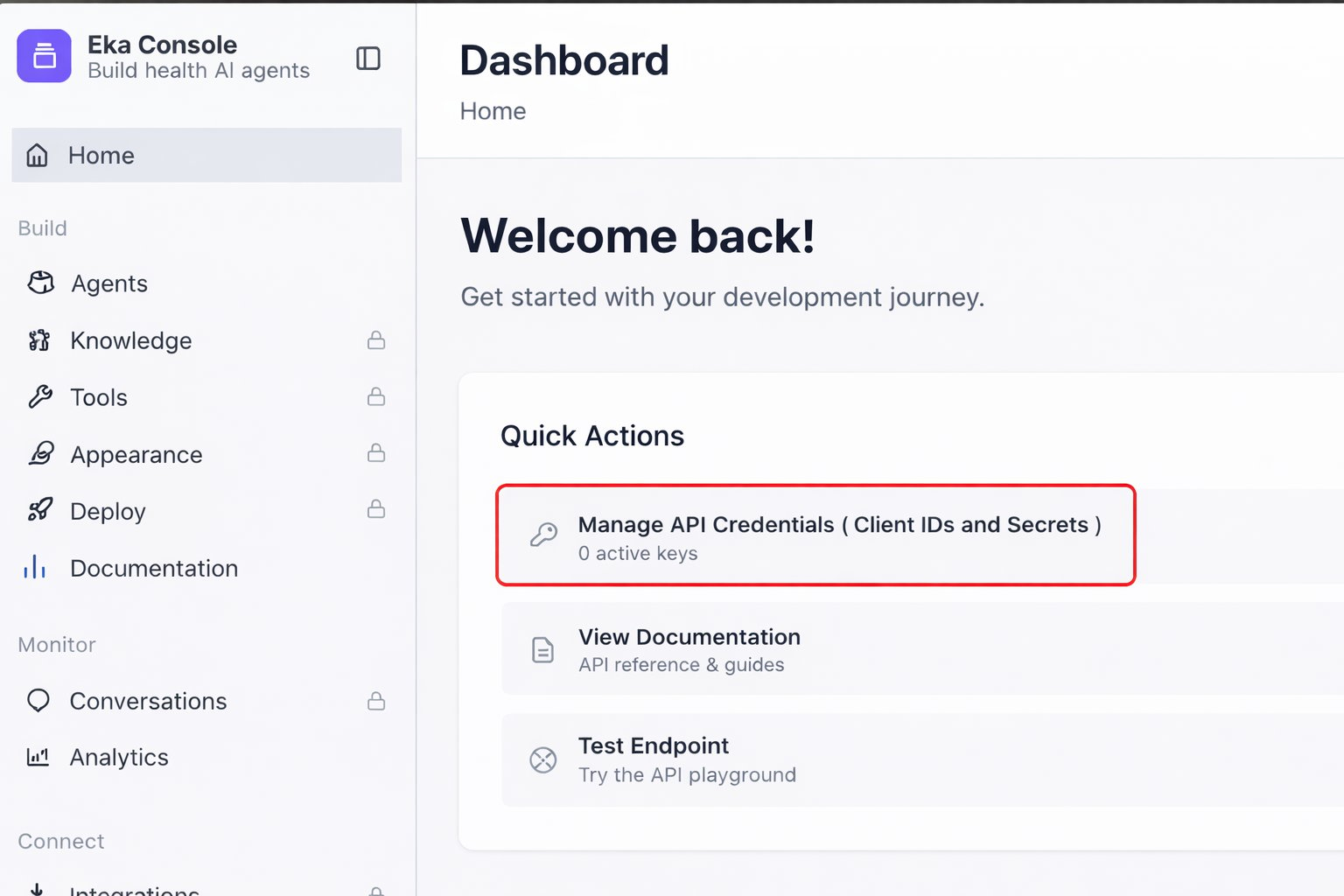
    Once logged in, you’ll land on the Eka Console dashboard.

    From the **Quick Actions** section, click
    <strong>Manage API Credentials (Client IDs and Secrets)</strong>.

    <img src="https://mintcdn.com/ekacare-mintlify-80308f89/AddPEjxaeC_E-a2e/api-reference/authorization/images/developer-console-homepage.png?fit=max&auto=format&n=AddPEjxaeC_E-a2e&q=85&s=b0635db90bfeeb01585d18227cf614a0" alt="Eka Console dashboard with Manage API Credentials highlighted" data-zoomable width="1536" height="1024" data-path="api-reference/authorization/images/developer-console-homepage.png" />
  </Step>

  <Step title="Create a New API Client">
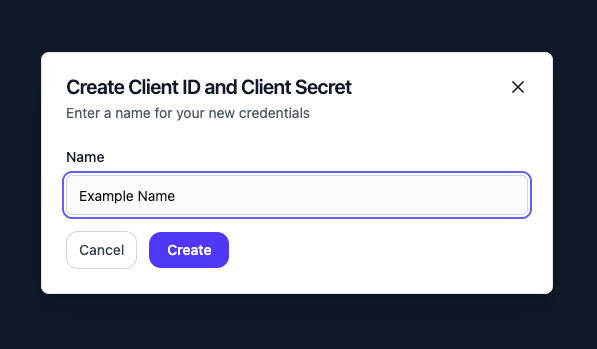
    Enter the required required details and click <strong>Create</strong>.

    <img src="https://mintcdn.com/ekacare-mintlify-80308f89/AddPEjxaeC_E-a2e/api-reference/authorization/images/create-api-creds.png?fit=max&auto=format&n=AddPEjxaeC_E-a2e&q=85&s=391e87968960fdc3cb3f28ed7604304f" alt="Eka Console dashboard with Manage API Credentials highlighted" data-zoomable width="597" height="349" data-path="api-reference/authorization/images/create-api-creds.png" />
  </Step>

  <Step title="Copy Client Credentials">
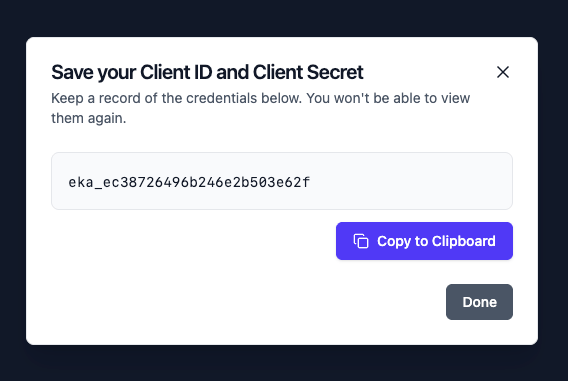
    After the client is created, securely copy:

    * <code>client\_id</code>
    * <code>client\_secret</code>

    <img src="https://mintcdn.com/ekacare-mintlify-80308f89/AddPEjxaeC_E-a2e/api-reference/authorization/images/save-client-secret.png?fit=max&auto=format&n=AddPEjxaeC_E-a2e&q=85&s=efb046d849900da5b66321080bcf8d29" alt="Eka Console dashboard with Manage API Credentials highlighted" data-zoomable width="568" height="381" data-path="api-reference/authorization/images/save-client-secret.png" />

    <Note>
      Store the client secret securely. It will not be shown again.
    </Note>
  </Step>
</Steps>

### Authenticating with Eka APIs

<Steps>
  <Step title="Obtain an Access Token">
    Authenticate your client using the [login](/api-reference/authorization/client-login) API. This will return both an access token and a refresh token, which you will use for subsequent API requests.
  </Step>

  <Step title="Using the Access Token">
    Include the access token in the `auth` header of every API request to authenticate and access Eka’s services
  </Step>

  <Step title="Handle Token Expiration">
    To ensure continuous access to the API, implement logic to manage token expiration and renewal.

    * If an API request returns a `401 Unauthorized` status code, it indicates that the access token has expired.
    * Use the [refresh token](/api-reference/authorization/refresh-token-v2) API to obtain a new access token and re-authenticate.
  </Step>
</Steps>

## Accessing Another Workspace Using a Sharing Key

Eka allows access to another workspace using a **Sharing Key**. Developers who wish to access another workspace must request a Sharing Key
from the owner of that workspace. The Sharing Key can be generated from the Hub.
<a href="https://hub.eka.care/account/" target="_blank">Click here to visit Hub</a>.

<Steps>
  <Step title="Generate a Sharing Key">
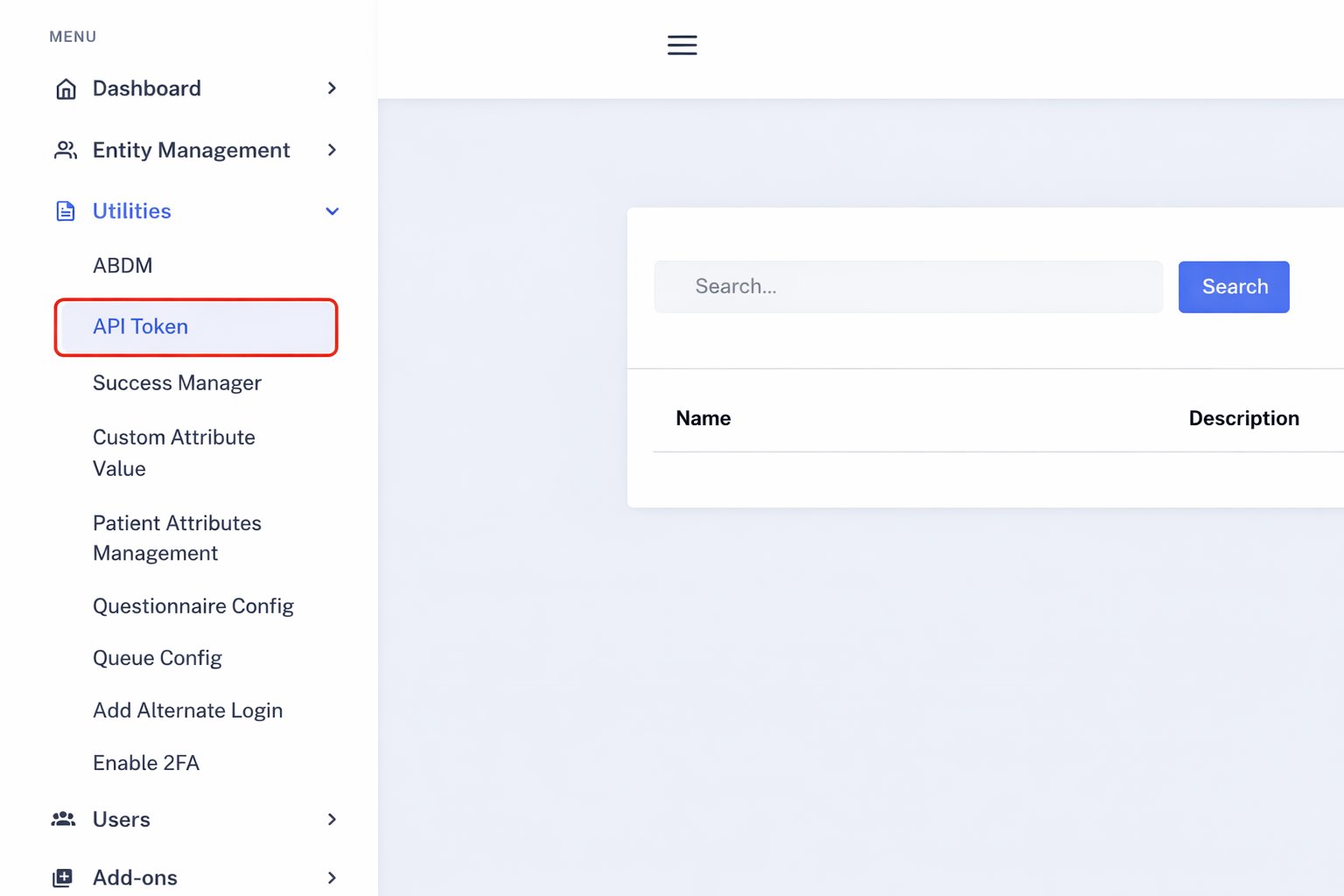
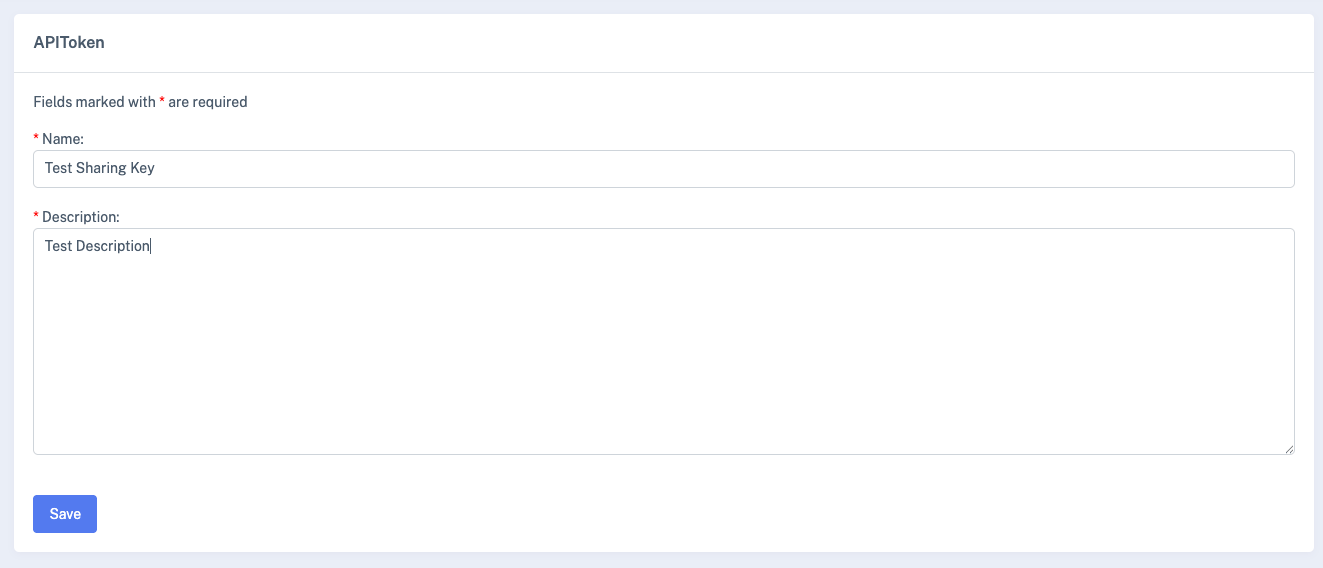
    Click on <strong> API Token </strong> to visit page to view and manage sharing keys.
    Click on <strong> Create </strong> and, provide the required information to create sharing key.

    <img src="https://mintcdn.com/ekacare-mintlify-80308f89/AddPEjxaeC_E-a2e/api-reference/authorization/images/hub-home.png?fit=max&auto=format&n=AddPEjxaeC_E-a2e&q=85&s=3976896ed69972eed3ff66711d630603" alt="Eka Console dashboard with Manage API Credentials highlighted" data-zoomable width="1536" height="1024" data-path="api-reference/authorization/images/hub-home.png" />

    <img src="https://mintcdn.com/ekacare-mintlify-80308f89/AddPEjxaeC_E-a2e/api-reference/authorization/images/create-sharing-key.png?fit=max&auto=format&n=AddPEjxaeC_E-a2e&q=85&s=02202a84041db557f6bafde934dbdf80" alt="Create Sharing Key" data-zoomable width="1323" height="568" data-path="api-reference/authorization/images/create-sharing-key.png" />
  </Step>

  <Step title="Provide the Sharing Key During Authentication">
    After completing this step, continue to

    <a href="/api-reference/authorization/getting-started#authenticating-with-eka-apis">
      Authenticating with Eka APIs
    </a>

    to generate an access token (provide <strong> sharing\_key </strong> in request body) and start making API requests.
  </Step>
</Steps>

***

## Long Lived Access Token

A Long-Lived Access Token is designed for backend-to-backend (server-to-server) communication between trusted systems.

**Why use a Long-Lived Token?**

* Simplifies authentication for system-to-system API calls
* Eliminates the need to repeatedly generate short-lived access tokens
* Ideal for long-running services and internal integrations

**When should you use this?**

* You are making backend-to-backend API calls
* You do not want to manage token refresh logic
* The integration is between trusted parties

<Steps>
  <Step title="Generate Long Lived Token">
    <a href="https://console.eka.care" target="_blank">Click here to visit Eka Developer Console</a>
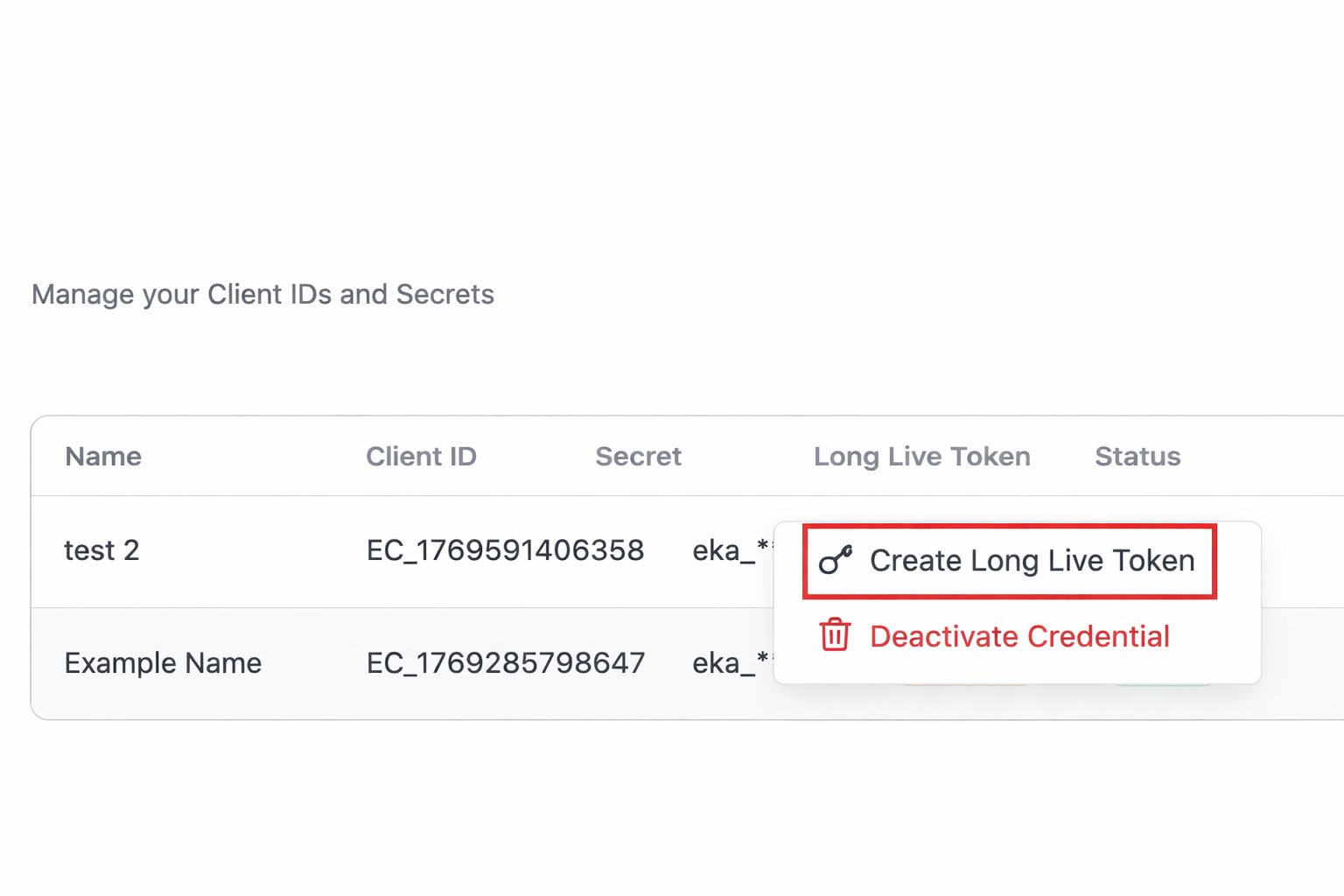
    <p>From the **Quick Actions** section, click
    <strong>Manage API Credentials (Client IDs and Secrets)</strong>.</p>
    Click More options(three dot menu) and click on **Create Long Live Token**

    <img src="https://mintcdn.com/ekacare-mintlify-80308f89/AddPEjxaeC_E-a2e/api-reference/authorization/images/create-long-lived-token.png?fit=max&auto=format&n=AddPEjxaeC_E-a2e&q=85&s=3ccaf004799c2fa1227bfc8259edd759" alt="Eka Console dashboard with Manage API Credentials highlighted" data-zoomable width="1536" height="1024" data-path="api-reference/authorization/images/create-long-lived-token.png" />
  </Step>

  <Step title="Copy Long Live Token">
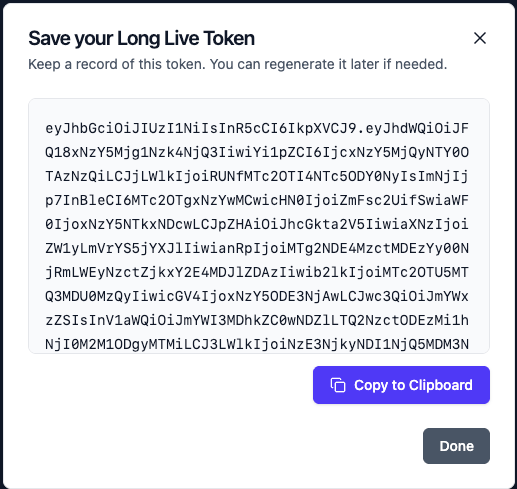
    After the token is created, securely copy it.

    <img src="https://mintcdn.com/ekacare-mintlify-80308f89/AddPEjxaeC_E-a2e/api-reference/authorization/images/save-long-lived-token.png?fit=max&auto=format&n=AddPEjxaeC_E-a2e&q=85&s=da1ea771195bc47ddd66a8d5dc303417" alt="Save Long Live Token" data-zoomable width="517" height="489" data-path="api-reference/authorization/images/save-long-lived-token.png" />

    <Note>
      Store the token securely. It will not be shown again.
    </Note>
  </Step>

  <Step title="Using Long Lived Token">
    Include the token in the `Authorization` header of every API request to authenticate and access Eka’s services
  </Step>
</Steps>

## Best Practices

* Safeguard your client credentials (client\_id and client\_secret) at all times.
* Implement a reliable token renewal mechanism to handle token expiration.
* Always include the access token in the `auth` header for all API calls.
* Manage 401 Unauthorized errors gracefully by automatically refreshing the token.
* Ensure that your application complies with all privacy regulations when handling healthcare data.